








How to Identify and Fix Common QuickBooks Desktop Subscription Errors

QuickBooks Desktop subscription errors can prevent users from opening the software, accessing subscription-based features, or downloading the latest updates. These issues may occur because of expired subscriptions, billing problems, outdated software, or license information that needs to be refreshed.
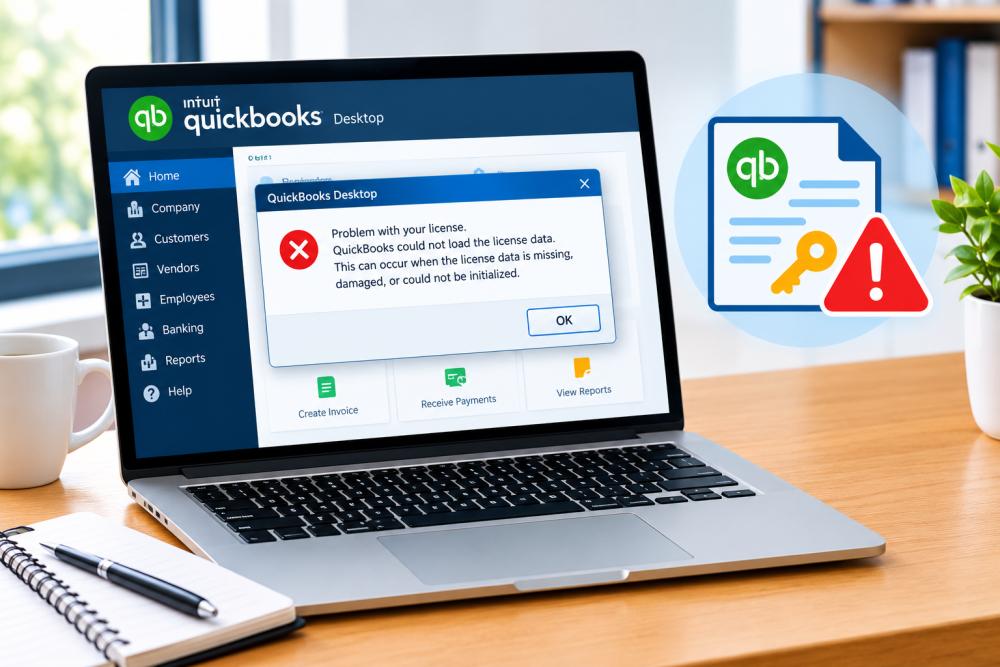
To troubleshoot the issue effectively, first match your QuickBooks subscription error message with the problem displayed on your screen. Identifying the exact message can help you choose the appropriate troubleshooting steps instead of making unnecessary changes to your company file or subscription settings.
Common QuickBooks Desktop Subscription Errors
Some users may encounter subscription validation messages, unexpected activation prompts, or notifications indicating that their subscription cannot be verified. The cause can vary depending on the subscription status, internet connection, or installed QuickBooks version.
Before applying a fix, note the complete error message and check whether your subscription is active.
How to Identify and Fix Subscription Errors
1. Verify Your Subscription Status
Sign in to your Intuit account and review your QuickBooks Desktop subscription details. Confirm that the subscription is active and that there are no outstanding billing or renewal issues. If the subscription has expired, follow the official renewal instructions.
2. Check Your Internet Connection
A weak or unstable internet connection may prevent QuickBooks from verifying subscription information. Confirm that your internet connection is working, then reopen QuickBooks and check whether the error persists.
3. Update QuickBooks Desktop
An outdated QuickBooks installation may experience compatibility or validation problems. Back up your company file before making significant changes, then install available updates using the appropriate QuickBooks update procedure.
4. Refresh Subscription and License Information
If the subscription is active but QuickBooks continues displaying a validation error, close the application and restart your computer. Follow Intuit's official instructions for refreshing registration or license information for your installed version. Avoid deleting license files manually unless official guidance specifically instructs you to do so.
5. Contact Official QuickBooks Support
If the error continues after these checks, contact Intuit QuickBooks support through its official website. Keep your QuickBooks version, subscription status, and exact error message available to help narrow down the cause.
Frequently Asked Questions
Why is QuickBooks Desktop showing a subscription error?
Common reasons include an expired subscription, billing issues, an unstable internet connection, outdated software, or problems verifying subscription information.
How can I identify the correct fix for my QuickBooks subscription error?
Record the exact message displayed on your screen, verify your subscription status, and compare the message with the official troubleshooting guidance for your QuickBooks version.
Can I fix a QuickBooks subscription error without losing company data?
Many subscription troubleshooting steps do not require changes to company data. Nevertheless, create a backup before performing repairs or making significant software changes.
Conclusion
Identifying the exact error message is the first step toward resolving QuickBooks Desktop subscription problems. Verify your subscription, check connectivity, install available updates, and follow official license troubleshooting instructions. If the problem remains unresolved, contact Intuit support for version-specific assistance.


